

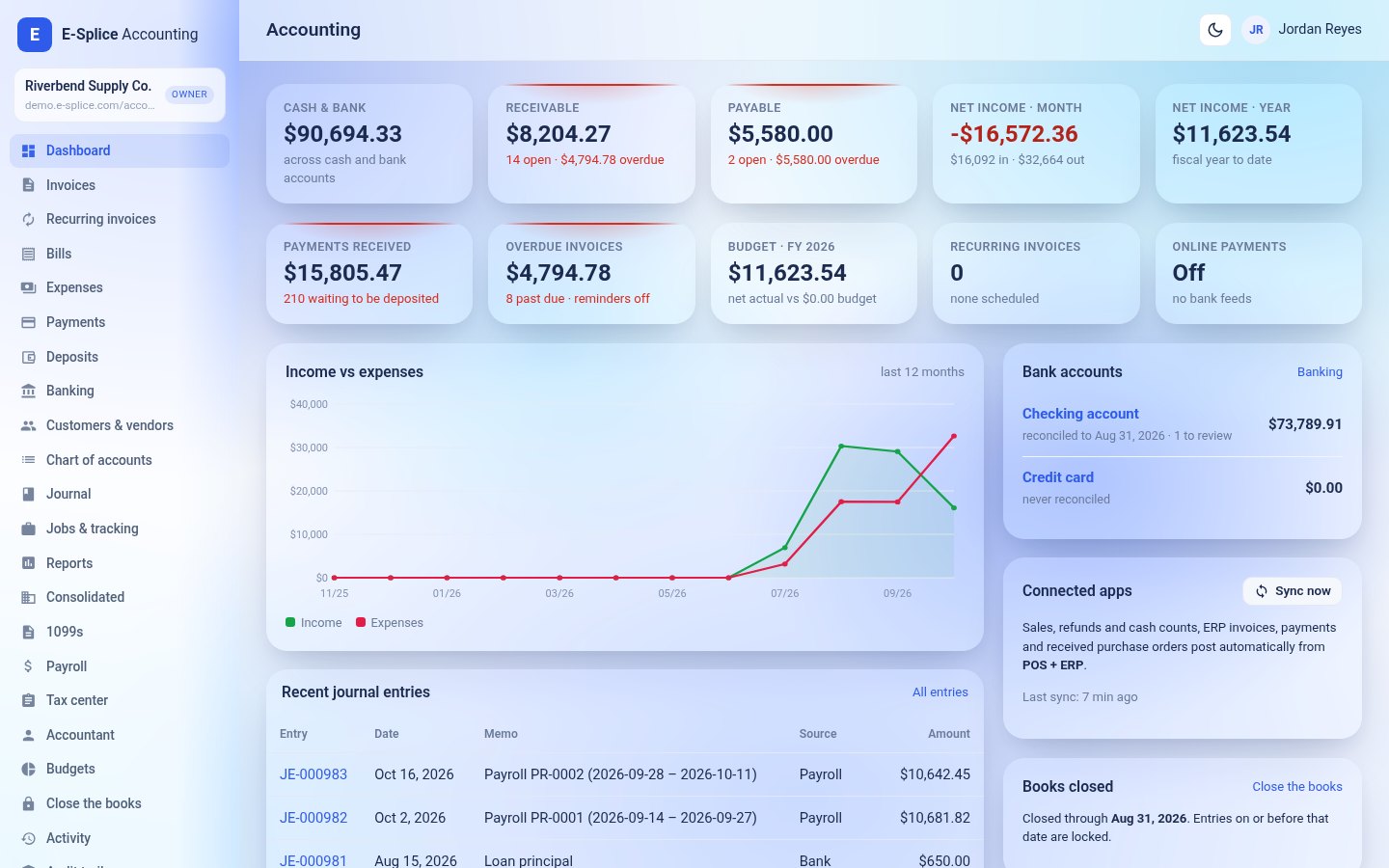
E-Splice Accounting is double-entry bookkeeping with invoices, bills, banking and reconciliation, sales tax, payroll, 1099s, job costing, budgets, consolidated reports and an audit trail. Open it from the Apps menu or at /accounting/ on your E-Splice site. It is included in Basic, Premium and Team, or $29.99/mo on its own.
Guides
- Getting started with Accounting
- Invoices, recurring invoices and Payments Received
- Bills, expenses and vendors
- Banking, bank rules and bank reconciliation
- Sales tax
- Payroll
- 1099s and W-9s
- Working with your accountant (accountant’s copy and Tax center)
- Job costing, departments and locations
- Consolidated (multi-entity) reports
- Budgets
- Reports and closing the books
- Audit trail, activity and roles
- Online payments and bank feeds
- Accounting FAQ
Moving from another system? See Data Migration.
When you first open Accounting it creates a standard chart of accounts for your workspace. Then: Settings: set your fiscal year start, default payment terms, invoice numbering and your logo, and turn on payment reminders if you want them. Chart of accounts: add, rename or deactivate accounts. Each account has a type (asset, liability, equity, income, expense) and can have a parent for sub-accounts. Bank and card accounts: in Banking, choose Add a bank or credit card account. Opening balances: in Import data, upload a trial balance as of your start date (date, account code, debit, credit). Any difference goes to Opening balance equity. Or enter a journal entry. Customers and vendors: add them in Customers & vendors, or import a CSV in Import data. Contacts from ERP and POS are shared automatically. Sales tax: add your tax rates. Connected apps: if you use POS or ERP, their sales, refunds, invoices, payments and received purchase orders post to the books automatically. Use Sync now on the dashboard to pull the latest. Every import shows a preview before anything is saved, and existing codes and names are skipped. For a full move from other software (history, open invoices and bills), use Data Migration, which you can open from Import data.
Create and send an invoice Go to Invoices and choose New invoice.Pick the customer, dates and terms, and add lines (account or item, quantity, price, tax rate). Tag lines with a job, department or location if you track them.Save as draft, or approve it. Approving posts it to the books (Accounts receivable).Email it to the customer or print / save it as a PDF. Record a payment Open the invoice and choose Record payment. Enter the amount (partial payments are fine), the date and the method. The payment goes to Payments Received (undeposited funds) until you deposit it. Deposit payments (Payments Received) In Deposits, tick the payments you took to the bank together (or that your card processor paid out together) and make a deposit into the bank account. Print a deposit slip if you need one. The deposit is the single amount you will match on your bank statement. A deposit can be voided if it was made by mistake. Recurring invoices In Recurring invoices choose New recurring invoice, or open an invoice and choose Make recurring. Set how often it repeats and when to start and stop, and whether to email each invoice automatically. Reminders and statements Turn on Payment reminders in Settings to email customers about overdue invoices. From a customer, print or Email statement (balance or activity). Void or delete Drafts can be deleted. Approved invoices are voided with a reason, which posts a reversing entry; nothing is erased, and the change appears in the audit trail. To take card payments online, see Online payments.
Bills Go to Bills and choose New bill. Pick the vendor, the bill date and due date, and add expense or item lines.Approve it to post it to Accounts payable.When you pay, open the bill and choose Pay bill: amount, date and the bank or card account you paid from. Received ERP purchase orders can create the payable for you automatically. Expenses For things paid on the spot (a card purchase, cash), use Expenses > Record an expense: date, payee, the account you paid from and the expense account. Attach the receipt as a photo or PDF under Receipts & files. Vendors Vendors live in Customers & vendors. For contractors who need a 1099, open the vendor and fill in the 1099 contractor section (see 1099s).
Import a bank or card statement In Banking, open the account and choose Import statement.Download a statement from your bank's website and choose the file: CSV, OFX, QFX (Quicken) or QBO (QuickBooks Web Connect). CSV columns are detected automatically and you can change them; your choice is remembered for that account.Lines already imported are skipped. Match and categorize Each statement line is matched to an existing entry (a payment, bill payment, deposit or journal line) where one exists. For the rest, choose Categorize: pick the account and optionally the customer or vendor, job, department or location. You can also exclude lines that don't belong. Bank rules In Bank rules, choose New rule to categorize repeat transactions automatically (for example, anything containing "City Power" goes to Utilities). Apply rules to lines waiting for review at any time. Reconcile an account Open the account in Banking and choose Reconcile.Enter the statement end date and ending balance (Start a reconciliation).Tick every item that appears on the statement. Items matched to imported statement lines are ticked for you.When the Difference is zero, choose Finish reconciliation. Finished reconciliations are listed with a printable report. The most recent one can be undone if you need to correct it. Reconciled items are protected from accidental changes. Customer payments wait in Payments Received until you deposit them, so the deposit amount matches the bank. See Payments Received.
In Settings > Tax rates, choose New tax rate: a name (for example "State 6%" or "City 2.25%") and the rate.Choose the rate on invoice and bill lines. Mark a rate as recoverable if you can claim back tax you pay on purchases.See what you owe in Reports > Sales tax, or in Tax center > Sales tax liability, by month or quarter.When you pay the tax authority, record the sales tax payment from the sales tax report. Sales from POS and ERP carry their tax into the books automatically. ERP has its own tax picker and tax-exempt customers; see ERP tax rates.
Verify your payroll taxes. E-Splice calculates payroll taxes from built-in tables as an estimate. Check withholding, wage bases and rates against current IRS and state publications before you pay. You are responsible for your tax deposits and filings. The 941, 940, W-2 and W-3 printouts are worksheets: file on the official forms or through an authorized e-file provider (Copy A of W-2/W-3 can't be filed from a plain-paper printout).Payroll runs inside Accounting. Employees are shared with Time Clock and Scheduling, and approved Time Clock hours flow into pay runs. Open Payroll in Accounting. Owners and managers can run payroll; owners change payroll settings. 1. Payroll settings On the Payroll settings tab enter your company name and address, EIN, state employer ID, the bank account you pay from, the default pay frequency, overtime and double-time multipliers, your state unemployment (SUTA) rate and wage base, any FUTA credit reduction, and the next check number. Optionally turn on Create draft pay runs automatically when Time Clock periods are approved. Direct deposit: to create NACHA ACH files, enter your bank's routing number and name, the originating DFI routing number, your ACH company ID (from your bank) and the company account number. Until these are entered, the ACH button stays off and you pay by check. 2. Employees On the Employees tab choose Add employee, or Sync from Time Clock to bring in people already in Time Clock. One record is shared: adding someone here adds them to Time Clock, and hourly rates update in Time Clock and Scheduling. For each employee enter: pay type (hourly or salary) and rate, pay frequency, address, SSN (stored encrypted; only the last 4 digits are shown), hire date, the federal W-4 (2020 or later: filing status, step 2 checkbox, dependents, other income, deductions, extra withholding, or exempt), work state and flat state withholding %, pre-tax deductions (% or fixed, for example 401(k)), after-tax deductions, how they're paid (check or direct deposit with routing and account number), and a default job, department or location. Link them to a workspace member so they can see their own pay stubs. 3. Time off Paid time off, sick and holiday hours are recorded on the Time off tab (or in Time Clock) and paid in the pay run for the period they fall in. 4. Create a pay run From Time Clock: approve the pay period in Time Clock. On the Payroll overview, the period appears under Approved Time Clock pay periods; choose Create pay run. Regular, overtime, double-time and paid-time-off hours come in for each employee, along with hours by job. Manual hours: choose New pay run (manual hours), enter the period and pay date, and type the hours. Salaried employees get their regular pay. While the run is a draft, choose Edit on a line to change hours or add a bonus or a non-taxed reimbursement. Taxes and net pay recalculate immediately. 5. Approve and pay Choose Approve and post. Wages, employer taxes and payroll liabilities post to the books, split by job, department or location where tagged. A Time Clock period used by the run is locked so its timesheets can't change. Print checks for employees paid by check, and Pay stubs for everyone. For direct deposit, choose ACH file and upload the file to your bank's ACH service. CSV exports the run for your records or your accountant. If a run was wrong, choose Void with a reason: a reversing entry is posted and the Time Clock period unlocks. Void any checks or ACH file you already used. 6. What is calculated Federal income tax withholding by the percentage method for 2020-and-later Forms W-4, annualized by pay frequency.Social Security (up to the annual wage base) and Medicare, including Additional Medicare tax on high wages; the employer's matching share.FUTA (with any credit reduction you enter) and state unemployment at your rate and wage base.State income tax at the flat percentage you set per employee.Pre-tax deductions reduce taxable wages; after-tax deductions come out of net pay. Verify your payroll taxes. E-Splice calculates payroll taxes from built-in tables as an estimate. Check withholding, wage bases and rates against current IRS and state publications before you pay. You are responsible for your tax deposits and filings. The 941, 940, W-2 and W-3 printouts are worksheets: file on the official forms or through an authorized e-file provider (Copy A of W-2/W-3 can't be filed from a plain-paper printout). 7. Tax liabilities and deposits The Tax liabilities tab shows, by quarter, federal (941) taxes, FUTA, state income tax, state unemployment, deductions and what you have deposited. After paying the IRS or your state, choose Record tax deposit / payment so the payroll liabilities account goes down. 8. Tax forms The Tax forms tab prints worksheets from approved pay runs: Form 941 (by quarter), 940, W-2 (employee copies B, C and 2, and employer copy D) and W-3. Use them to file on the official forms or with IRS e-file / SSA Business Services Online. 9. Employee pay stubs Employees linked to a workspace member open My pay stubs in Accounting to view and print their stubs from approved runs.
Open a vendor in Customers & vendors and fill in the 1099 contractor section: tick This vendor gets a 1099 and choose the form and box (1099-NEC box 1, or a 1099-MISC box such as rents or attorney proceeds).Choose Request W-9 to email the contractor a private link. They fill in their W-9 there, and can later see payments and download their 1099s.Pay them as usual through bills and expenses. Card payments are excluded, as the IRS requires, because the card company reports them.In 1099s, pick the year to see each contractor's total and whether they are over the threshold.Choose Print recipient copies and print the 1096 summary, or CSV for IRIS / preparer to e-file through the IRS IRIS system or give to your preparer.
Give your accountant access In Accountant, choose Invite accountant and enter their email. The Accountant role can review and post entries, run and export reports and close periods, but cannot change settings, billing or your team. Remove access at any time. Send an accountant's copy In Accountant, choose a dividing date (usually your year end) and Create accountant's copy. A file downloads; send it to your accountant.Until the copy comes back, entries on or before the dividing date are held for the accountant. Everything after it works as usual.Your accountant makes their adjusting entries and returns the file. Choose Import returned copy: their entries are posted and the hold is lifted.If the copy won't come back, choose Cancel copy. Tax center The Tax center has three tabs: Income tax summary: totals for each line of Schedule C, Form 1120, 1120-S or 1065 for the year, ready to print for your preparer.Tax line mapping: assign each account to a tax line. Unmapped accounts use a suggested line until you review them.Sales tax liability: tax collected and paid by month or quarter. When your accountant is done, close the year in Close the books.
Open Jobs & tracking and add jobs, departments or locations. Use Pull locations from Time Clock / ERP to reuse locations you already have.Tag invoice and bill lines, expenses, bank lines, journal lines and employees (for payroll) with a job, department or location.Open a job to see its income, costs and profit, or run the profit and loss by department or location in Reports. Payroll posts wages to the job on each Time Clock punch, or to the employee's default job, department or location.
If you own or manage more than one E-Splice workspace (for example two companies), open Consolidated to see a profit and loss or balance sheet across them side by side with a total column. Choose which workspaces to include and the date range (or the balance sheet date).Turn on elimination to remove intercompany accounts you've marked to eliminate, so money moving between your companies isn't counted twice.Print or export the report. You only see workspaces where you have access to the books.
Open Budgets and choose the fiscal year.Enter a monthly amount for each income and expense account.Save. The budget vs actual report shows each month's actual, budget and difference, and the dashboard shows the year's net actual against budget.
Reports In Reports: profit and loss (accrual or cash basis, any date range, with comparisons), balance sheet, cash flow, sales tax, trial balance, and accounts receivable and payable aging. Filter by job, department or location where available. Every report can be printed or saved as PDF, and exported as CSV. Close the books In Close the books, close a month (or the whole fiscal year) once it is final. Entries on or before the closed date can't be added, changed or deleted. Owners can reopen a period if a correction is needed; reopening is recorded in the audit trail. Net income rolls into retained earnings on the balance sheet.
Audit trail Audit trail lists every change made in the books: who, when, from where, and the before and after values. Entries in the audit trail can't be edited or deleted. Activity Activity is a plain-language feed: invoice approved, payment received, pay run approved, period closed and so on. Roles Owner: everything, including settings, payroll settings, closing periods and inviting the accountant.Manager: day-to-day work: invoices, bills, banking, payroll runs and reports.Staff: limited or no access to the books, depending on your workspace roles. Staff linked to payroll can see their own pay stubs.Accountant: review and post entries, run and export reports, close periods; no access to settings, billing or the team.
Online invoice payments (Stripe) Optional. In Settings > Online invoice payments (Stripe), connect your own Stripe account. Invoices then get a pay-by-card link (and bank payments, if enabled in Stripe). Payments land in Payments Received automatically. Until you connect Stripe, this stays off. Bank feeds (coming soon) Automatic bank feeds through Plaid are coming soon as an optional add-on and stay off until set up. Today, import statements from any bank as CSV, OFX, QFX or QBO; see Banking.
Is it double-entry?Yes. Every transaction is a balanced journal entry in your chart of accounts. Can I change or delete a posted entry?Drafts can be deleted. Posted documents are voided or reversed, so the history stays intact and appears in the audit trail. Closed periods can't be changed until an owner reopens them. Why is a payment not in my bank account yet?Customer payments wait in Payments Received until you make a deposit. See Payments Received. Does E-Splice file or pay my payroll taxes?No. It calculates them (as an estimate you should verify), posts them to the books, tracks what you owe and prints worksheets. You make the deposits and file the returns. Which states does payroll support?Federal taxes are built in. State income tax uses the flat percentage you set for each employee, and state unemployment uses your rate and wage base. Check your state's rules. Do I need Time Clock for payroll?No. You can enter hours by hand. With Time Clock (Premium and Team), approved hours flow in and the period is locked when paid. Can my accountant work in my books?Yes: invite them with the Accountant role, or send an accountant's copy. Can I import from my old software?Yes. Use Data Migration, or the CSV import in Accounting for accounts, contacts and opening balances. Do you connect to my bank?Statement import works with every bank today. Automatic bank feeds (Plaid) are coming soon as an option. Does it work on my phone?Yes. It runs in the browser and adapts to phones and tablets.