

Import a bank or card statement
- In Banking, open the account and choose Import statement.
- Download a statement from your bank’s website and choose the file: CSV, OFX, QFX (Quicken) or QBO (QuickBooks Web Connect). CSV columns are detected automatically and you can change them; your choice is remembered for that account.
- Lines already imported are skipped.
Match and categorize
Each statement line is matched to an existing entry (a payment, bill payment, deposit or journal line) where one exists. For the rest, choose Categorize: pick the account and optionally the customer or vendor, job, department or location. You can also exclude lines that don’t belong.
Bank rules
In Bank rules, choose New rule to categorize repeat transactions automatically (for example, anything containing “City Power” goes to Utilities). Apply rules to lines waiting for review at any time.
Reconcile an account
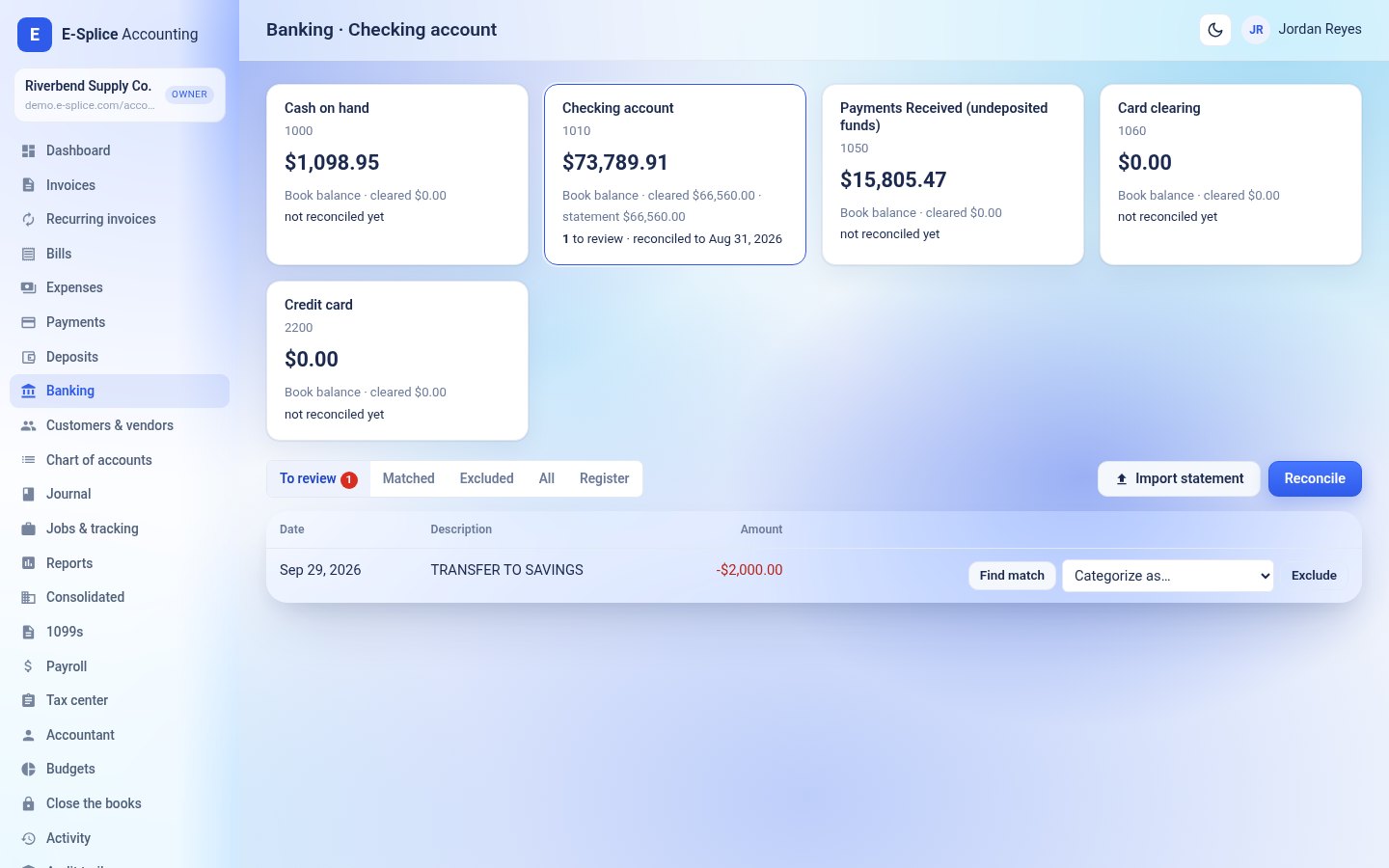
- Open the account in Banking and choose Reconcile.
- Enter the statement end date and ending balance (Start a reconciliation).
- Tick every item that appears on the statement. Items matched to imported statement lines are ticked for you.
- When the Difference is zero, choose Finish reconciliation.
Finished reconciliations are listed with a printable report. The most recent one can be undone if you need to correct it. Reconciled items are protected from accidental changes.
Customer payments wait in Payments Received until you deposit them, so the deposit amount matches the bank. See Payments Received.