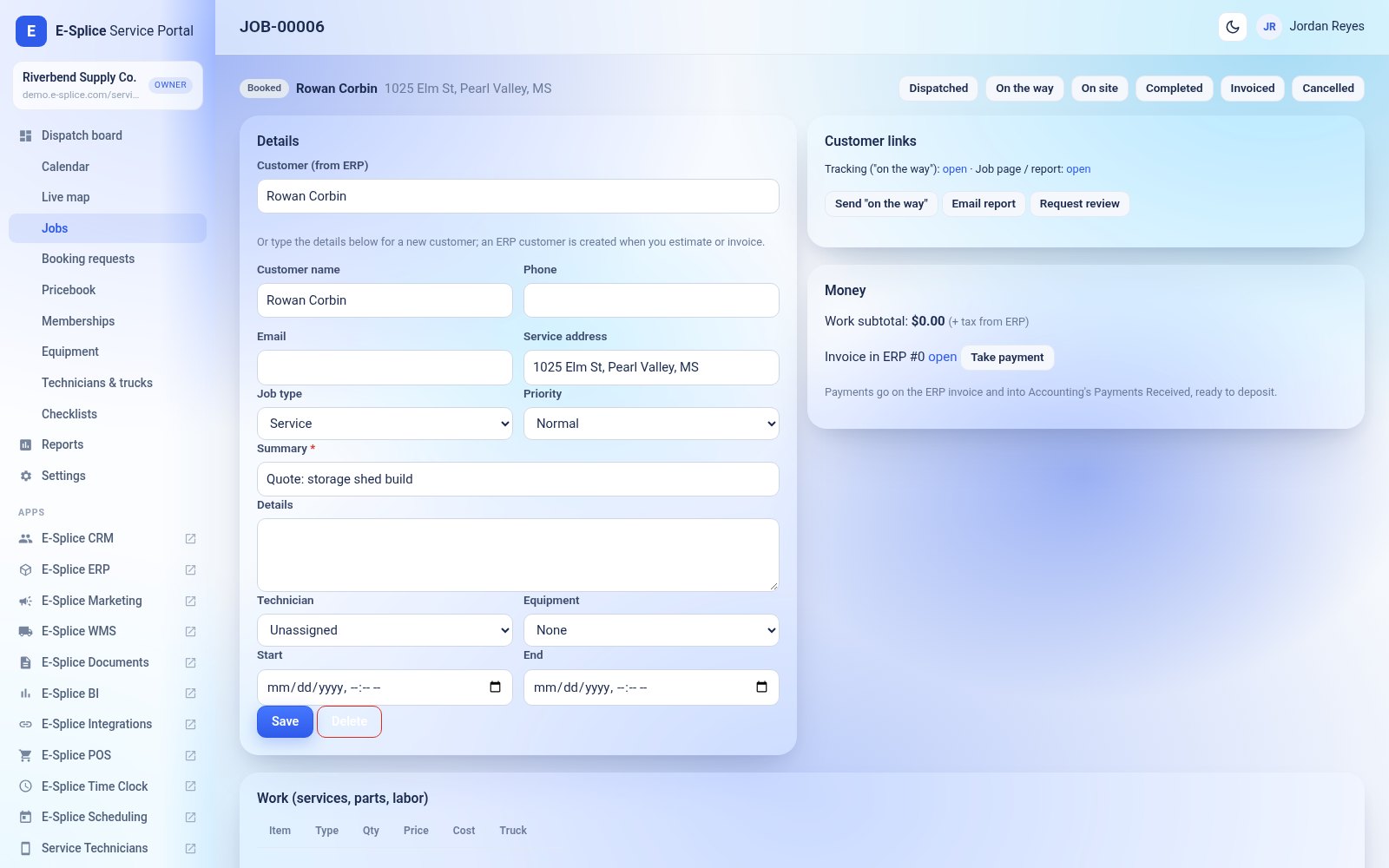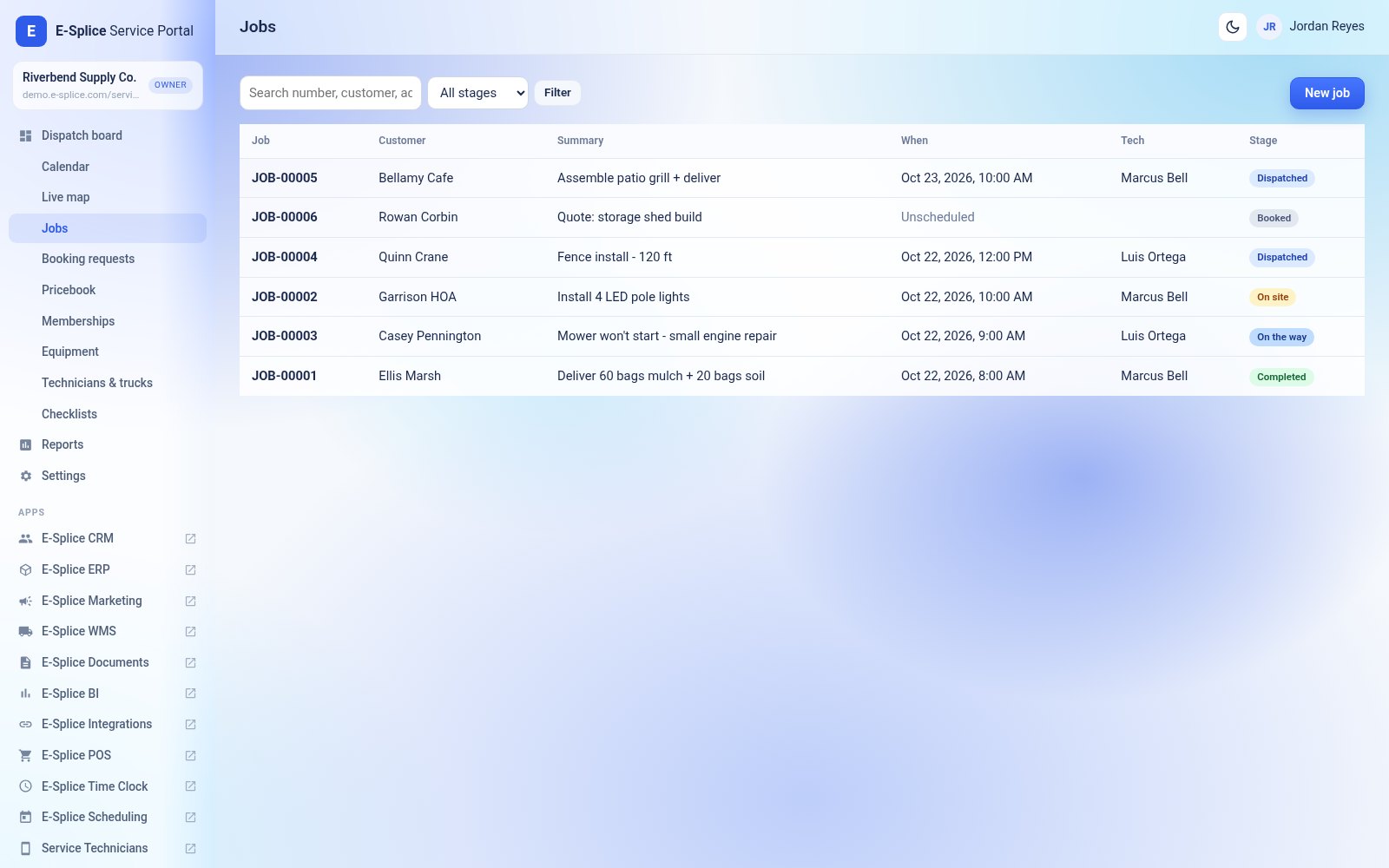

A job holds the customer, address, job type, priority, summary, the technician and time, the work lines, notes, photos, checklists, signature and payments.
Create a job
Click New job. Pick an ERP customer or type a new customer’s name, phone, email and address; an ERP customer is created when you estimate or invoice. Addresses are placed on the map automatically (free OpenStreetMap lookup).
Stages
- Booked: created, not assigned.
- Dispatched: has a technician and a time.
- On the way: the technician is driving; the customer can get an on-the-way link.
- On site.
- Completed: the work is done (a signature can be required in Settings).
- Invoiced: an ERP invoice was created.
- Cancelled.
Technicians change stages from the app; the office can change them from the job. Every change is logged on the job.
Invoice and payment
Click Create invoice to create the ERP invoice from the job’s work. Parts marked as coming from the truck are taken off that truck’s stock. Take payment records cash, check, card or bank payments on the ERP invoice; they appear in Accounting’s Payments Received, ready to deposit. Card readers aren’t connected: run the card on your reader, then record it.