
Online booking form
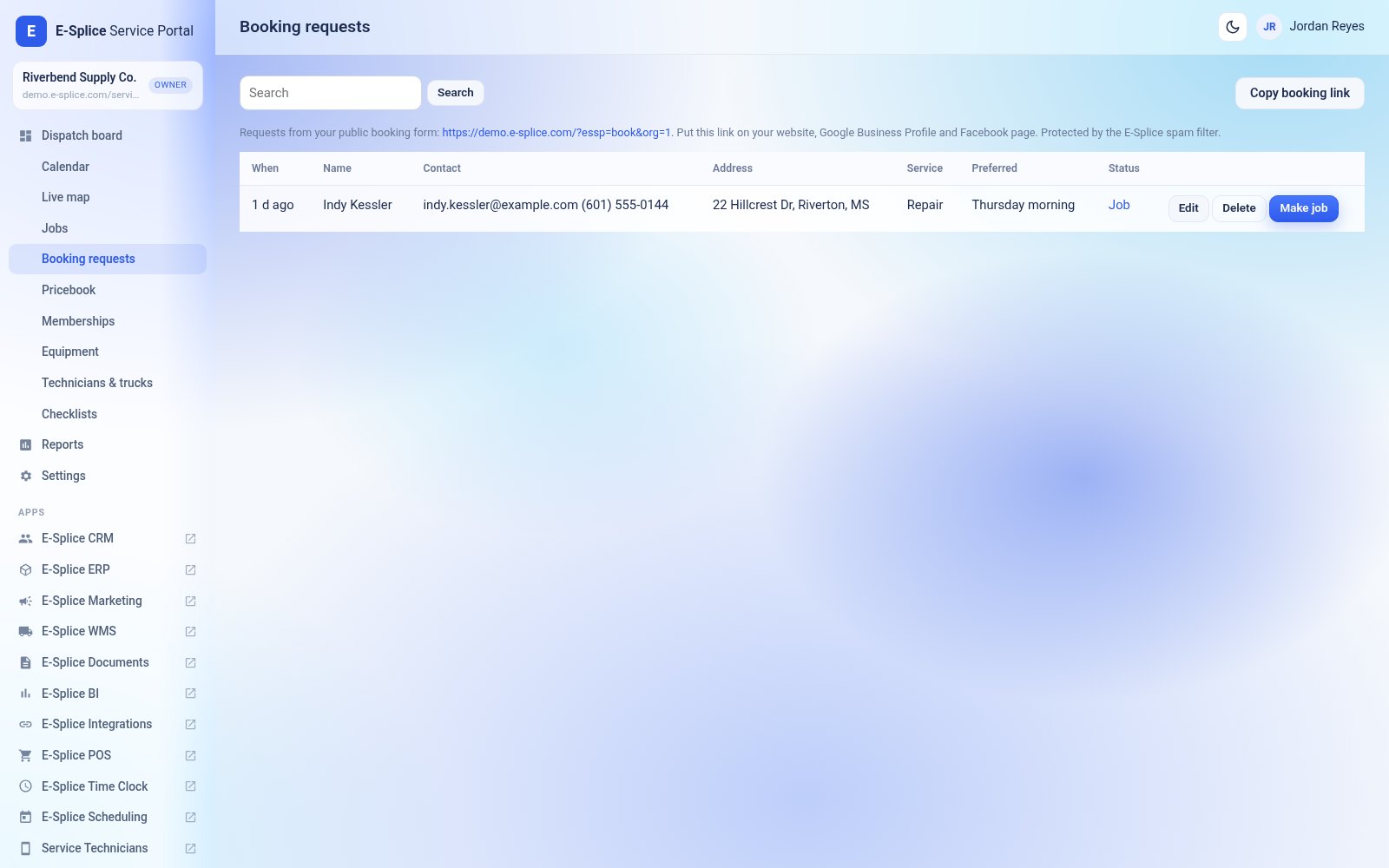
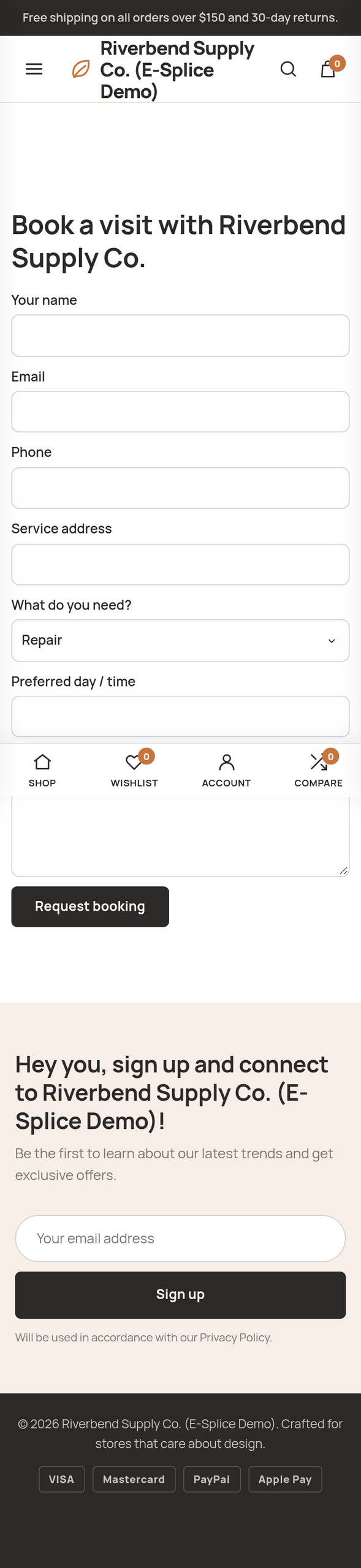
Turn on Online booking form in Settings and list the services you offer. Copy the booking link from Booking requests and put it on your website, Google Business Profile and social pages. The form uses E-Splice spam protection. New requests appear on the dispatch board and in Booking requests; click Make job to turn one into a job.
Customer pages and portal
Every job has a private customer page (from the on-the-way or report email) with visit details, estimate options to approve, the service report, checklist results, signature and invoice status. In the customer portal, customers enter their email and get a sign-in link (valid for 24 hours) that lists all their visits.