

Verify your payroll taxes. E-Splice calculates payroll taxes from built-in tables as an estimate. Check withholding, wage bases and rates against current IRS and state publications before you pay. You are responsible for your tax deposits and filings. The 941, 940, W-2 and W-3 printouts are worksheets: file on the official forms or through an authorized e-file provider (Copy A of W-2/W-3 can’t be filed from a plain-paper printout).
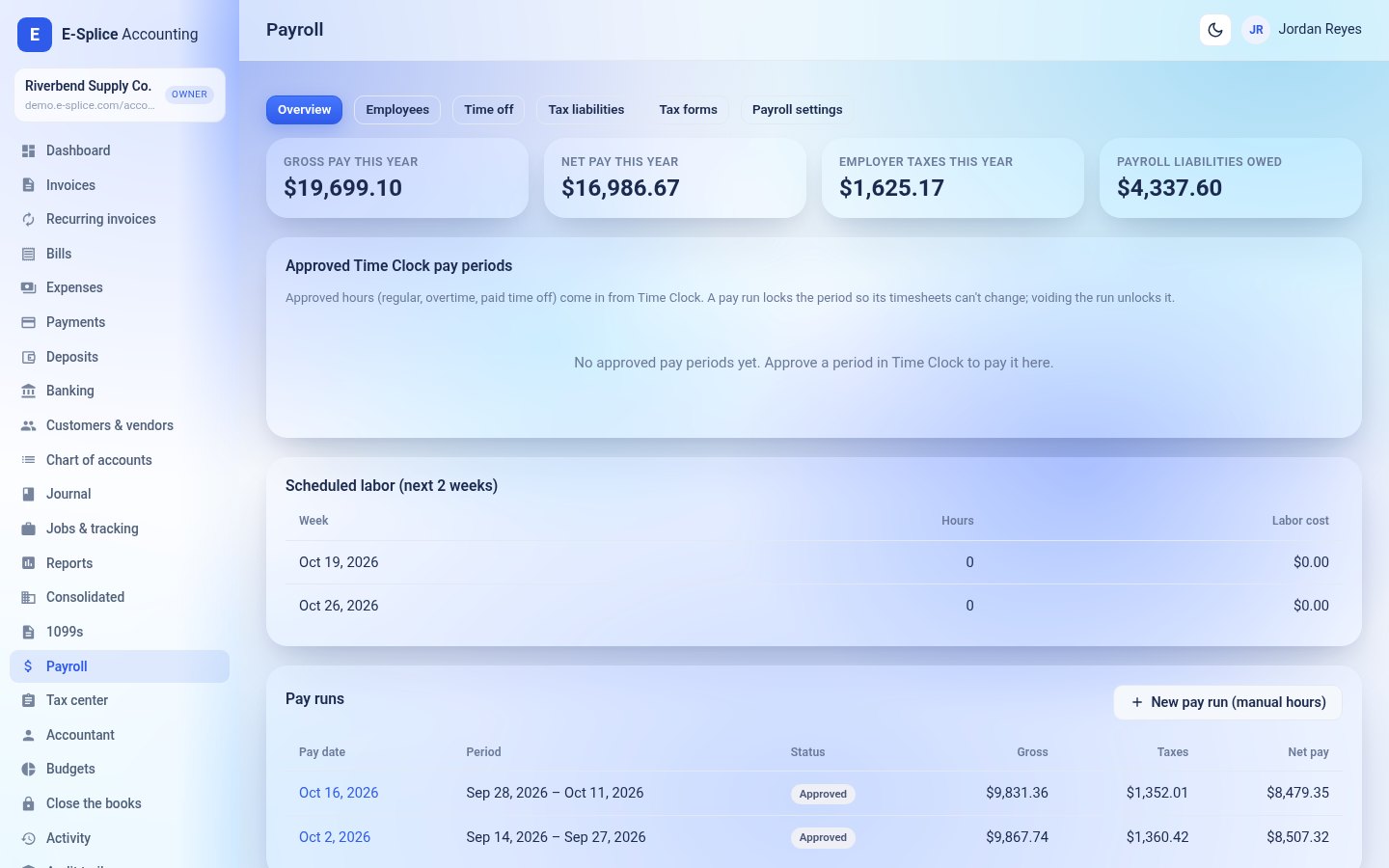
Payroll runs inside Accounting. Employees are shared with Time Clock and Scheduling, and approved Time Clock hours flow into pay runs. Open Payroll in Accounting. Owners and managers can run payroll; owners change payroll settings.
1. Payroll settings
On the Payroll settings tab enter your company name and address, EIN, state employer ID, the bank account you pay from, the default pay frequency, overtime and double-time multipliers, your state unemployment (SUTA) rate and wage base, any FUTA credit reduction, and the next check number. Optionally turn on Create draft pay runs automatically when Time Clock periods are approved.
Direct deposit: to create NACHA ACH files, enter your bank’s routing number and name, the originating DFI routing number, your ACH company ID (from your bank) and the company account number. Until these are entered, the ACH button stays off and you pay by check.
2. Employees
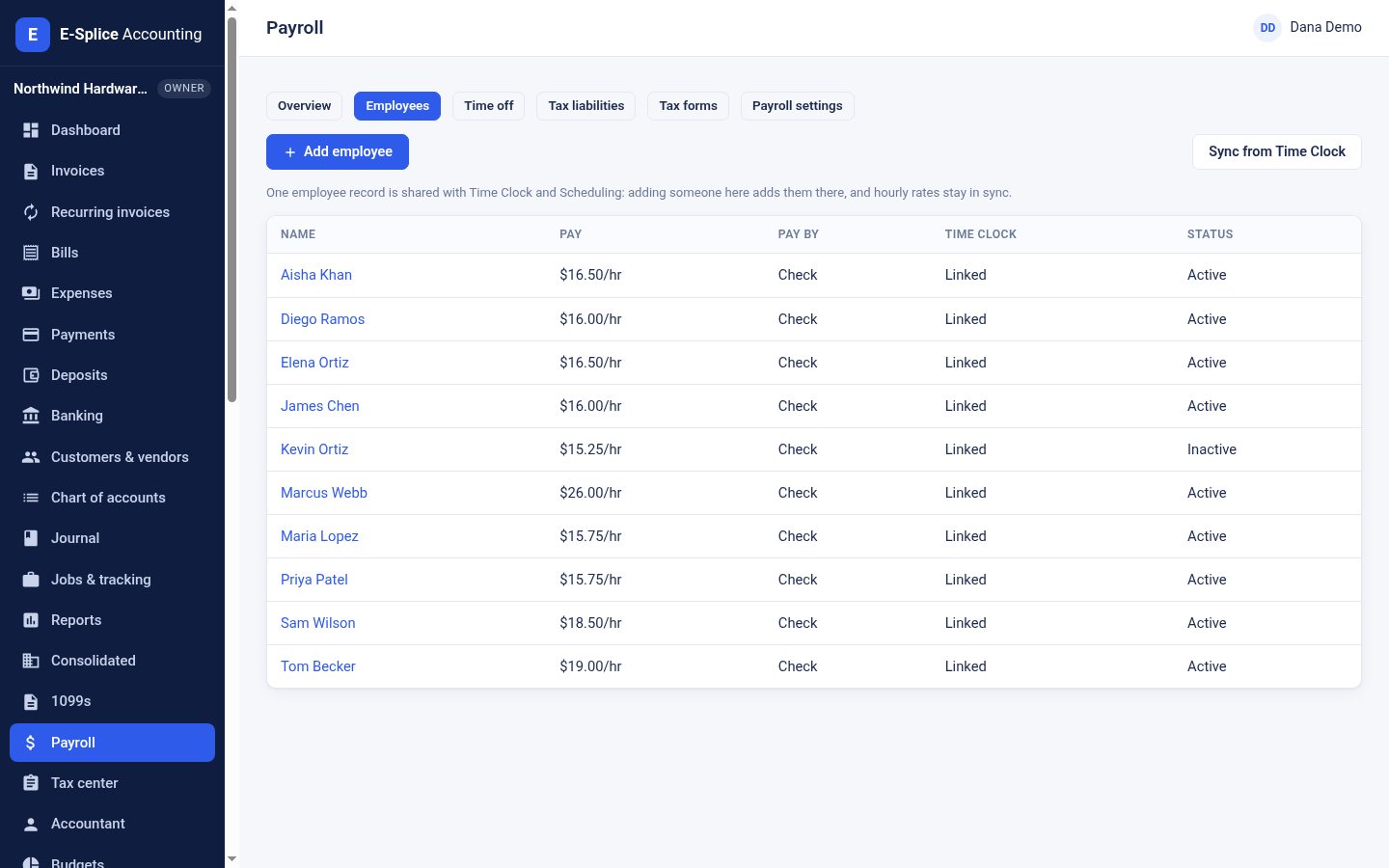
On the Employees tab choose Add employee, or Sync from Time Clock to bring in people already in Time Clock. One record is shared: adding someone here adds them to Time Clock, and hourly rates update in Time Clock and Scheduling.
For each employee enter: pay type (hourly or salary) and rate, pay frequency, address, SSN (stored encrypted; only the last 4 digits are shown), hire date, the federal W-4 (2020 or later: filing status, step 2 checkbox, dependents, other income, deductions, extra withholding, or exempt), work state and flat state withholding %, pre-tax deductions (% or fixed, for example 401(k)), after-tax deductions, how they’re paid (check or direct deposit with routing and account number), and a default job, department or location. Link them to a workspace member so they can see their own pay stubs.
3. Time off
Paid time off, sick and holiday hours are recorded on the Time off tab (or in Time Clock) and paid in the pay run for the period they fall in.
4. Create a pay run
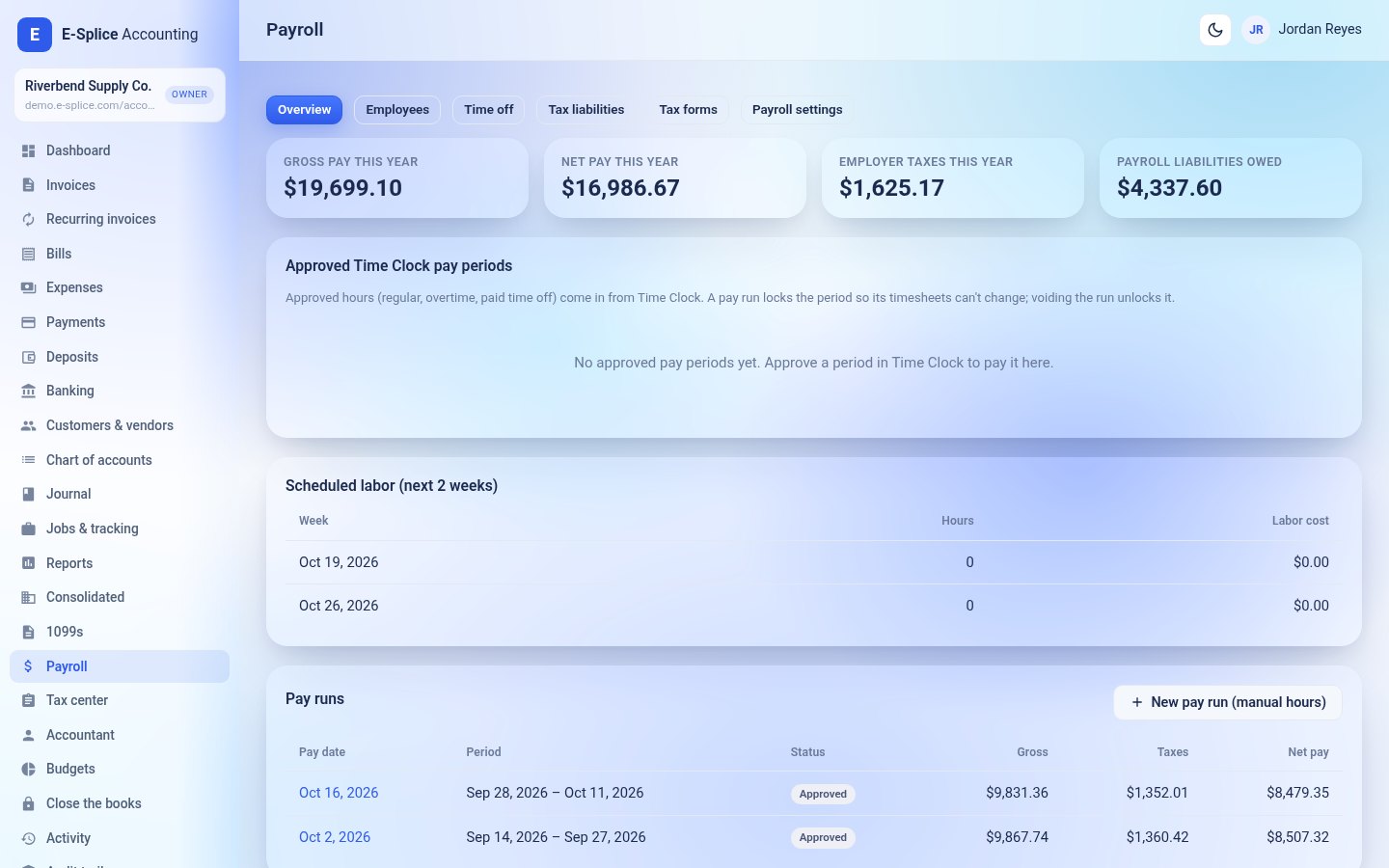
- From Time Clock: approve the pay period in Time Clock. On the Payroll overview, the period appears under Approved Time Clock pay periods; choose Create pay run. Regular, overtime, double-time and paid-time-off hours come in for each employee, along with hours by job.
- Manual hours: choose New pay run (manual hours), enter the period and pay date, and type the hours. Salaried employees get their regular pay.
While the run is a draft, choose Edit on a line to change hours or add a bonus or a non-taxed reimbursement. Taxes and net pay recalculate immediately.
5. Approve and pay
- Choose Approve and post. Wages, employer taxes and payroll liabilities post to the books, split by job, department or location where tagged. A Time Clock period used by the run is locked so its timesheets can’t change.
- Print checks for employees paid by check, and Pay stubs for everyone.
- For direct deposit, choose ACH file and upload the file to your bank’s ACH service.
- CSV exports the run for your records or your accountant.
If a run was wrong, choose Void with a reason: a reversing entry is posted and the Time Clock period unlocks. Void any checks or ACH file you already used.
6. What is calculated
- Federal income tax withholding by the percentage method for 2020-and-later Forms W-4, annualized by pay frequency.
- Social Security (up to the annual wage base) and Medicare, including Additional Medicare tax on high wages; the employer’s matching share.
- FUTA (with any credit reduction you enter) and state unemployment at your rate and wage base.
- State income tax at the flat percentage you set per employee.
- Pre-tax deductions reduce taxable wages; after-tax deductions come out of net pay.
Verify your payroll taxes. E-Splice calculates payroll taxes from built-in tables as an estimate. Check withholding, wage bases and rates against current IRS and state publications before you pay. You are responsible for your tax deposits and filings. The 941, 940, W-2 and W-3 printouts are worksheets: file on the official forms or through an authorized e-file provider (Copy A of W-2/W-3 can’t be filed from a plain-paper printout).
7. Tax liabilities and deposits
The Tax liabilities tab shows, by quarter, federal (941) taxes, FUTA, state income tax, state unemployment, deductions and what you have deposited. After paying the IRS or your state, choose Record tax deposit / payment so the payroll liabilities account goes down.
8. Tax forms
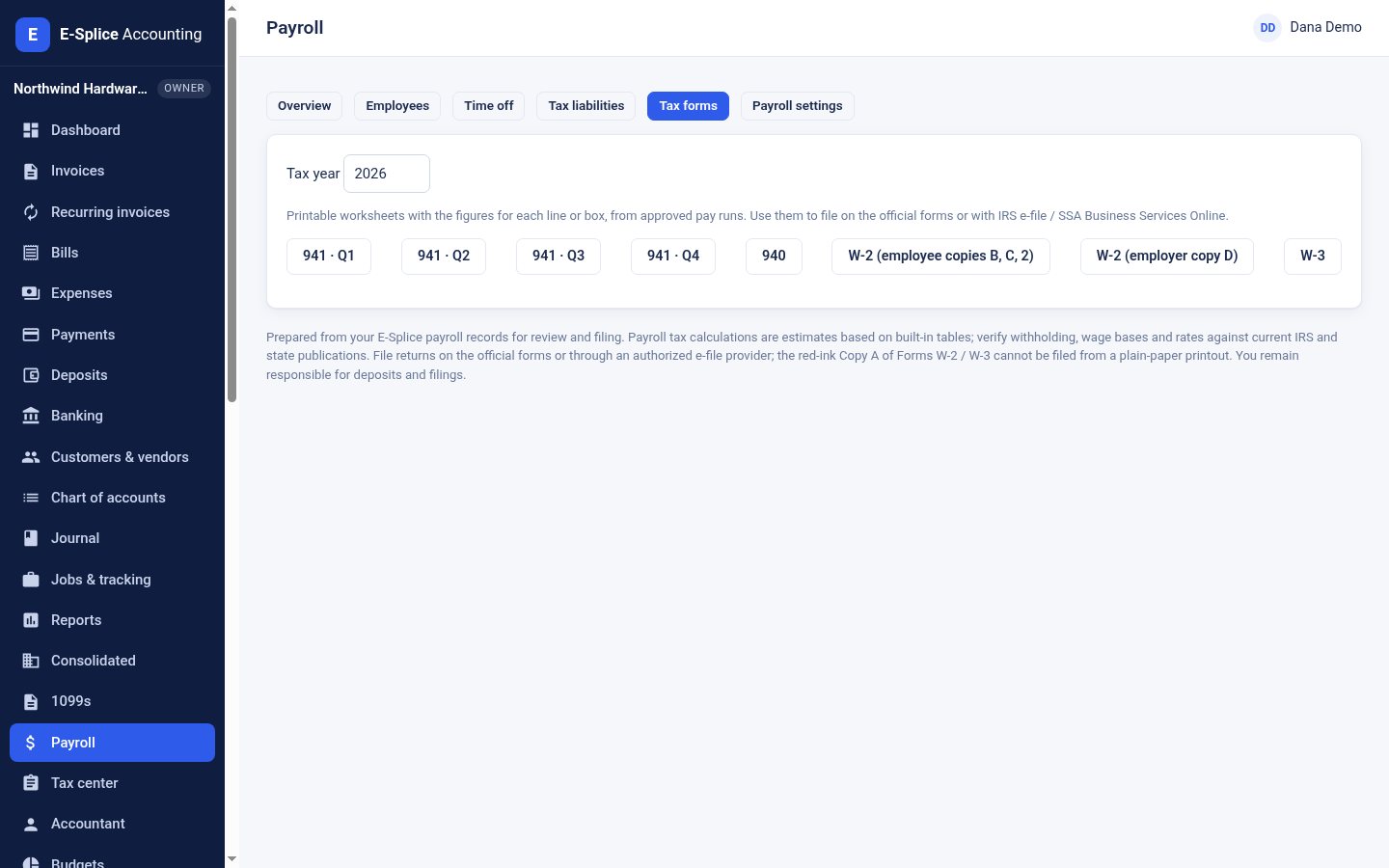
The Tax forms tab prints worksheets from approved pay runs: Form 941 (by quarter), 940, W-2 (employee copies B, C and 2, and employer copy D) and W-3. Use them to file on the official forms or with IRS e-file / SSA Business Services Online.
9. Employee pay stubs
Employees linked to a workspace member open My pay stubs in Accounting to view and print their stubs from approved runs.