

Create and send an invoice
- Go to Invoices and choose New invoice.
- Pick the customer, dates and terms, and add lines (account or item, quantity, price, tax rate). Tag lines with a job, department or location if you track them.
- Save as draft, or approve it. Approving posts it to the books (Accounts receivable).
- Email it to the customer or print / save it as a PDF.
Record a payment
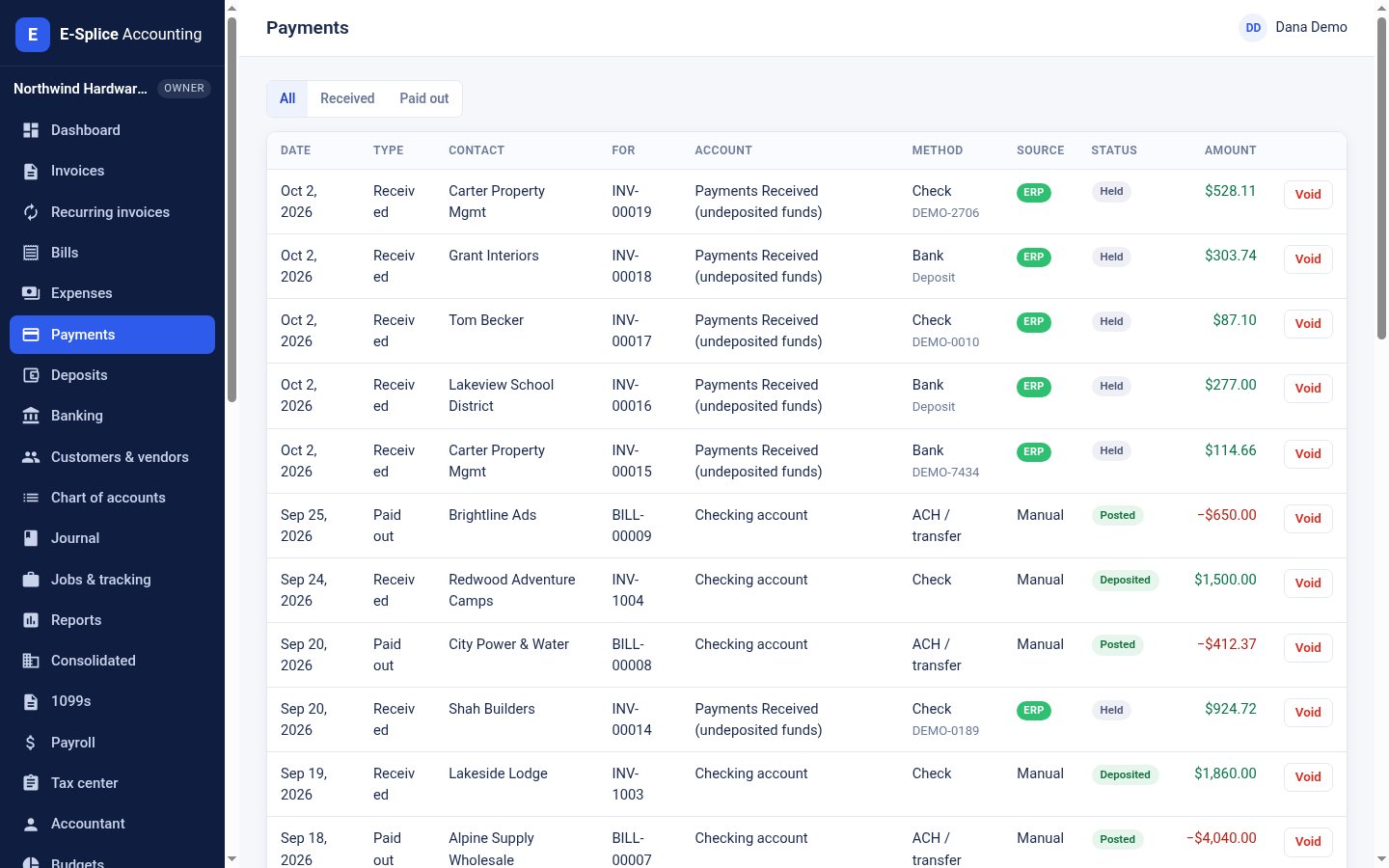
Open the invoice and choose Record payment. Enter the amount (partial payments are fine), the date and the method. The payment goes to Payments Received (undeposited funds) until you deposit it.
Deposit payments (Payments Received)
In Deposits, tick the payments you took to the bank together (or that your card processor paid out together) and make a deposit into the bank account. Print a deposit slip if you need one. The deposit is the single amount you will match on your bank statement. A deposit can be voided if it was made by mistake.
Recurring invoices
In Recurring invoices choose New recurring invoice, or open an invoice and choose Make recurring. Set how often it repeats and when to start and stop, and whether to email each invoice automatically.
Reminders and statements
Turn on Payment reminders in Settings to email customers about overdue invoices. From a customer, print or Email statement (balance or activity).
Void or delete
Drafts can be deleted. Approved invoices are voided with a reason, which posts a reversing entry; nothing is erased, and the change appears in the audit trail.
To take card payments online, see Online payments.